Have you ever tried saving an article to read while offline, only to open it later and find broken images and a ruined layout? The traditional “Save page as” option in modern browsers simply doesn’t cut it anymore: it breaks page layouts, ignores lazy-loaded images, and saves clutter like tracking scripts and unwanted ads.
Backup Engine fixes this problem at its core. Instead of copying incomplete code, it processes the entire page using an automated Chromium engine, scrolls through all dynamic content to capture every real visual element, strips away intrusive ads, and delivers a clean, lightweight, fully functional copy directly to your Downloads folder.
Best of all, it is completely free and safe, officially verified and available on the Microsoft Store.
In this step-by-step guide, you’ll learn how to archive any web article in just a few clicks. Install Backup Engine for free from the Microsoft Store and leave these limitations behind!
Step-by-Step Instructions
Before starting the download:
- Open your web browser and navigate to the article, documentation, or tutorial you want to archive.
- Select the complete URL in the address bar (including
https://) and copy it to your clipboard (Ctrl + C).
-
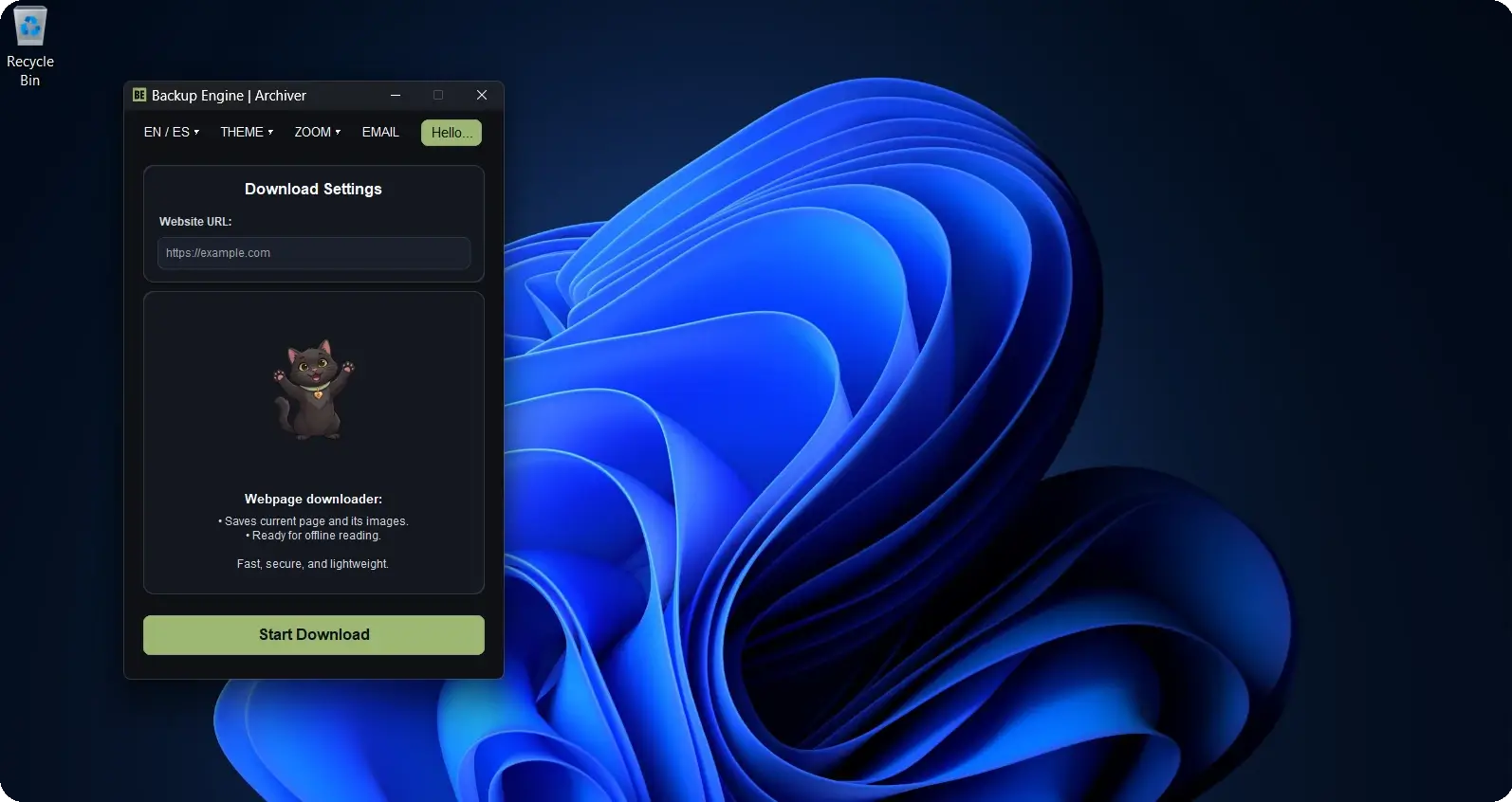
Open Backup Engine on your computer.
-
Locate the Website URL text field on the top configuration card, right-click inside the field and select Paste, or press
Ctrl + V.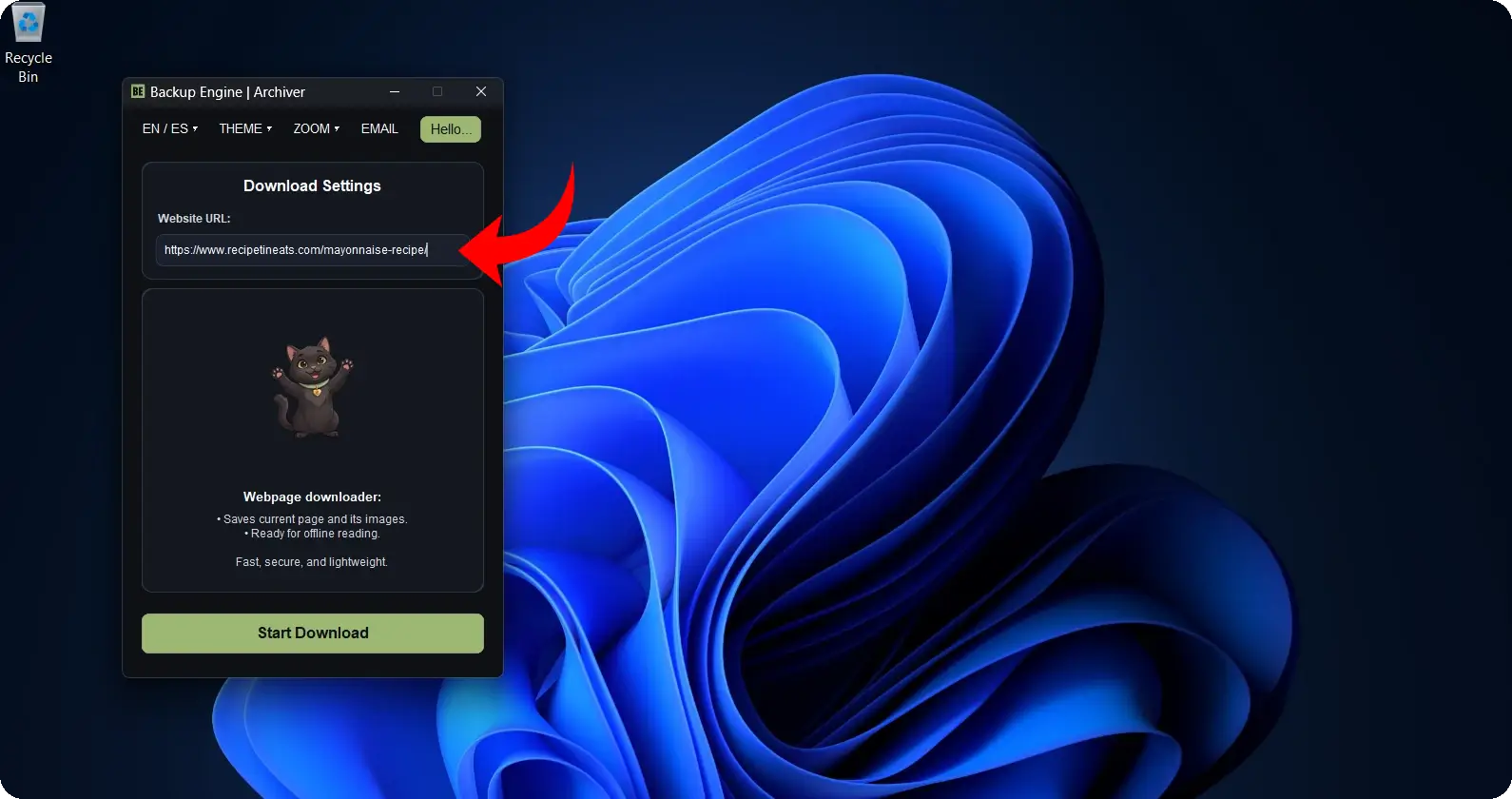
-
Click the Start Download button (or press the
Enterkey directly while in the URL field).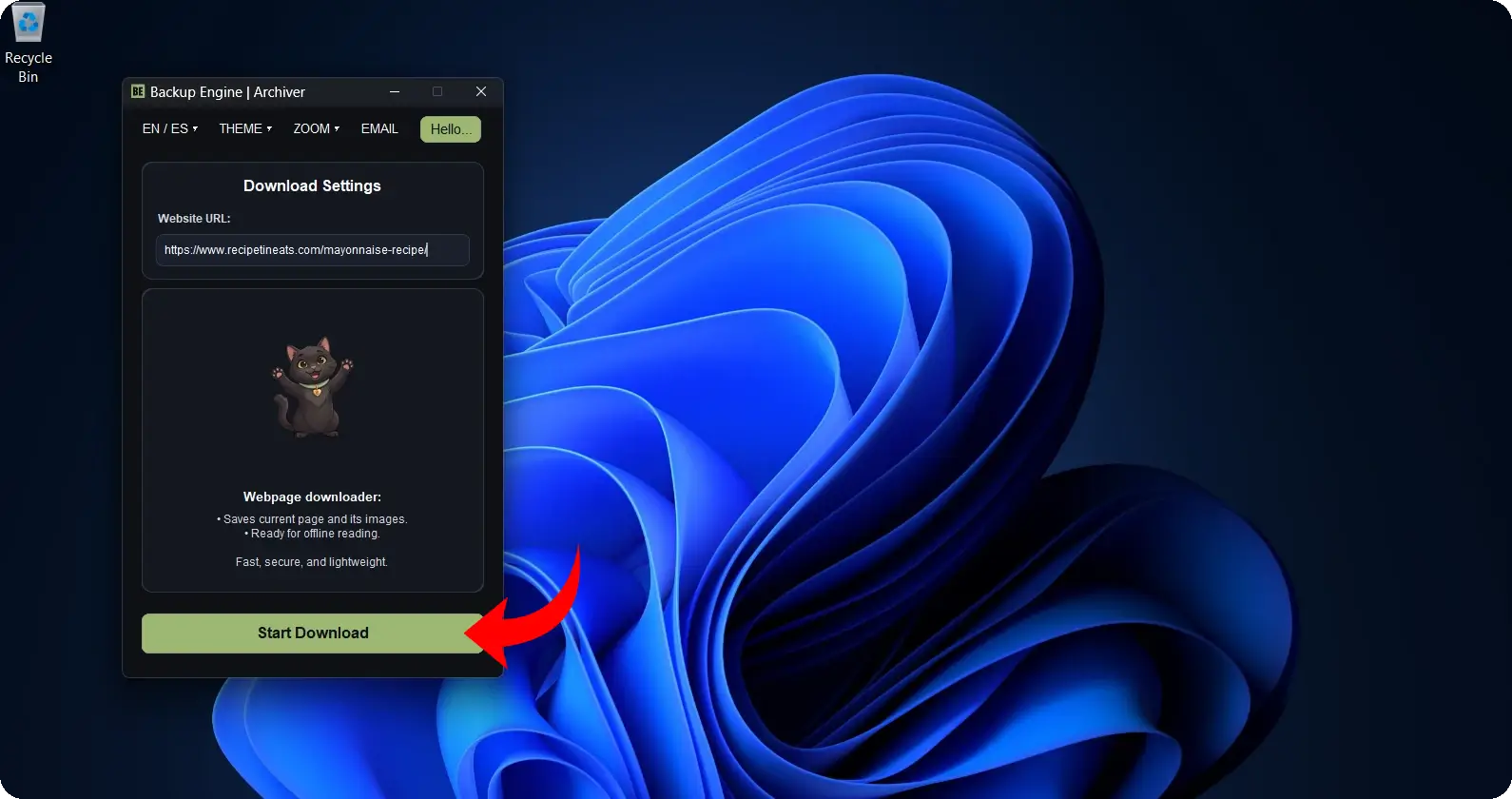
-
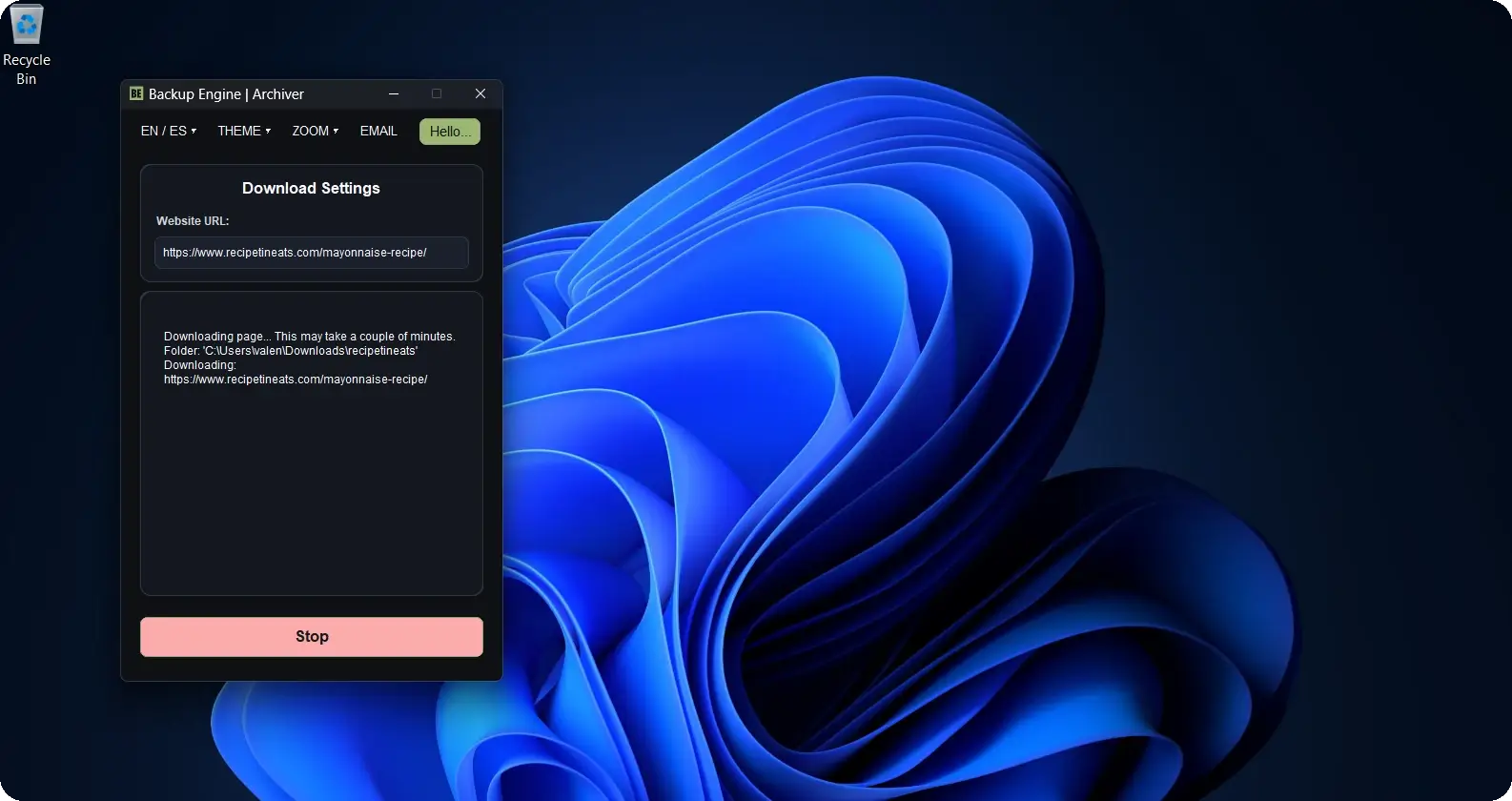
The status card will switch to a live terminal mode, displaying step-by-step logs:
-
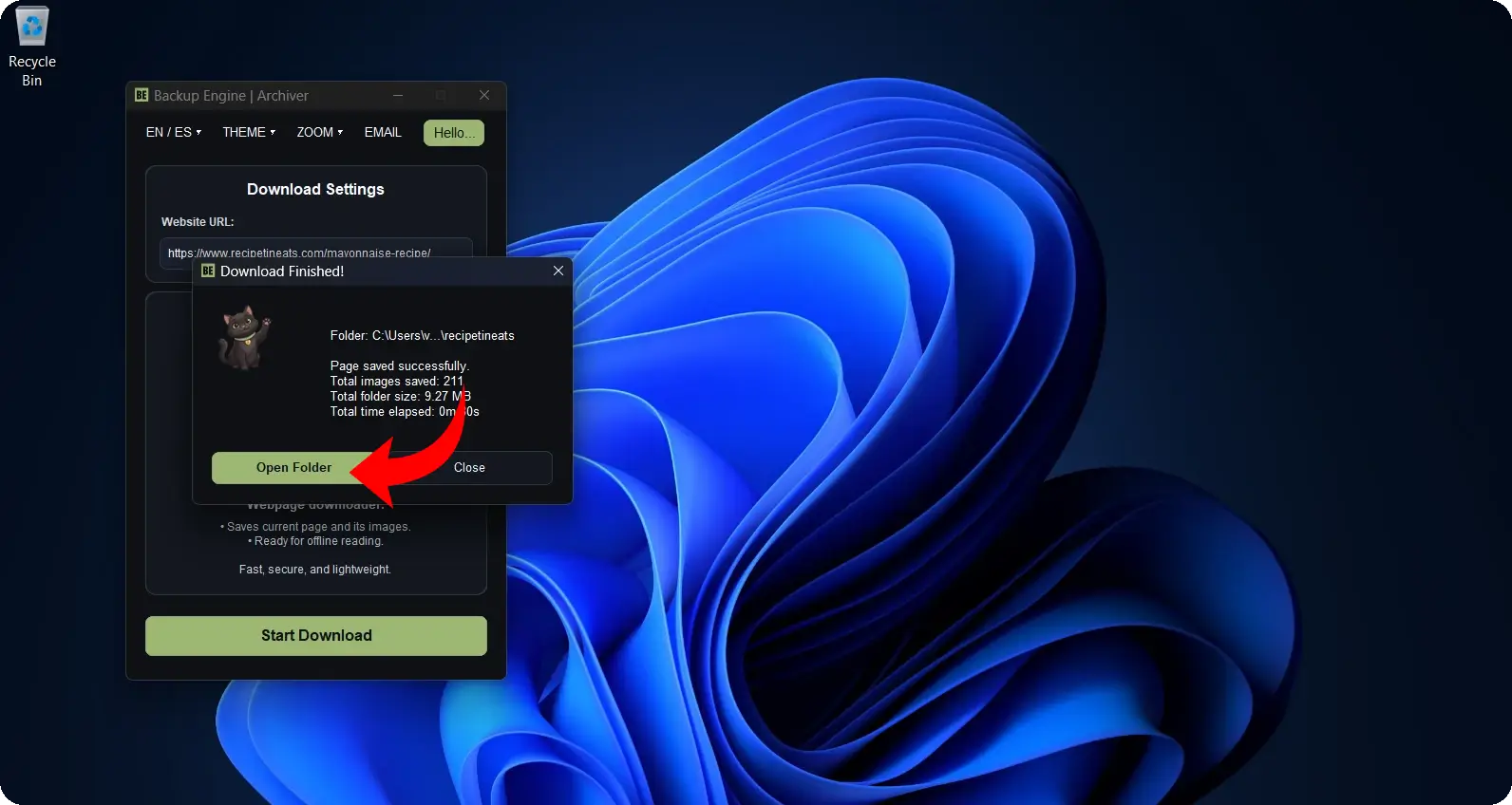
Once the process is complete, a summary dialog will appear with the following details:
- The local destination folder path.
- The total number of downloaded images.
- The final file size (in KB or MB).
- The total elapsed time.
Click Open Folder to go directly to the saved folder in Windows File Explorer.
- Inside
Downloads/<site-name>/, double-click the generated.htmlfile (for example,article-name.html).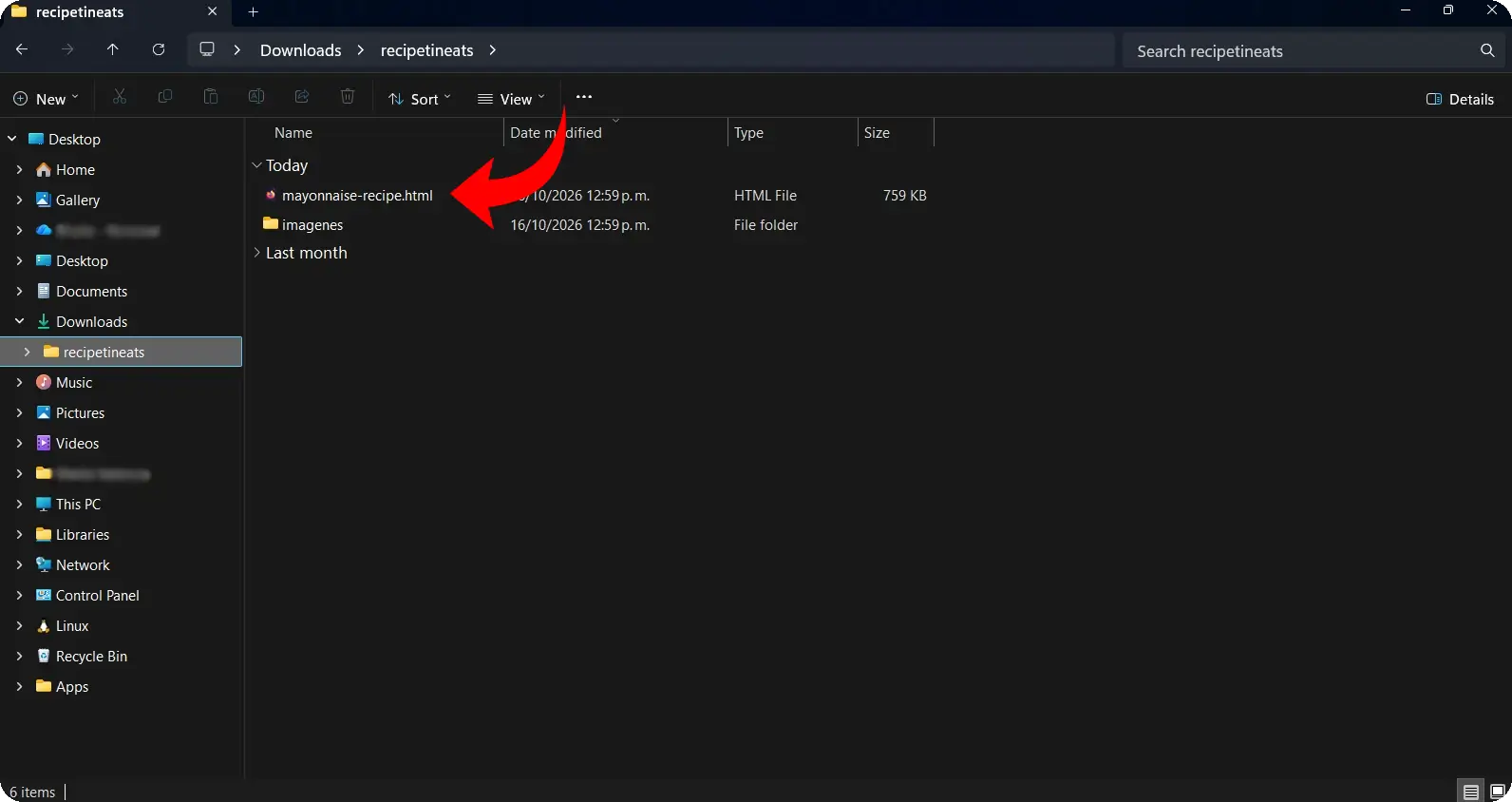
The document will open immediately in your default browser: with the layout intact, all local images included, free of ads, and with no internet connection required.
⚠️ About protected sites: If the target website restricts automated connections with an HTTP 403 Forbidden status code, Backup Engine safely detects the block and notifies you immediately without freezing the application.