Microsoft Azure offers one of the most advanced neural text-to-speech engines in the industry, featuring natural intonation, diverse accents, and voice emotion styles.
By default, TTS Engine includes a free built-in speech engine that requires zero configuration. However, connecting your own Azure Speech API key unlocks higher control, fine-tuned pauses, and expressive emotional voice styles.
Best of all, Microsoft provides a Free Tier (F0) that grants 500,000 characters per month at no cost. This guide walks you through setting up your free resource step by step.
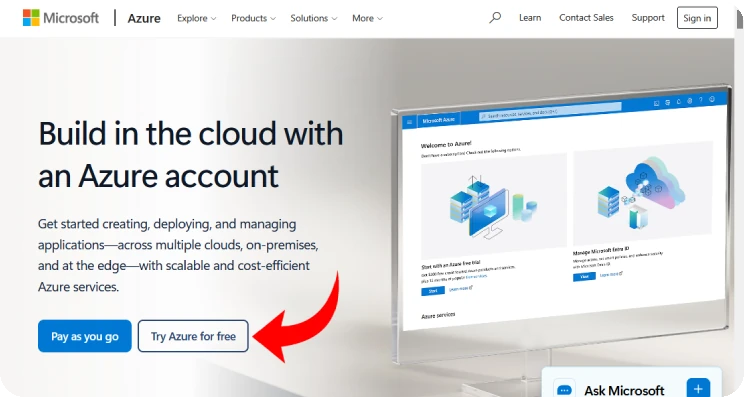
- Navigate to the official Azure Free Account page and Click “Try Azure for free”
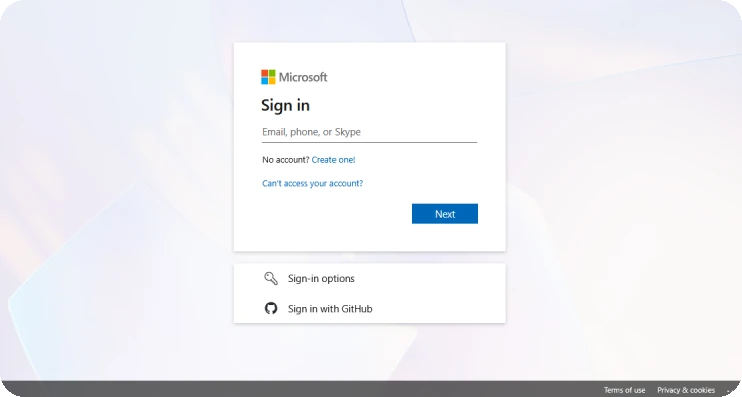
- Sign in with your standard Microsoft account (Outlook, Hotmail, or Microsoft 365).
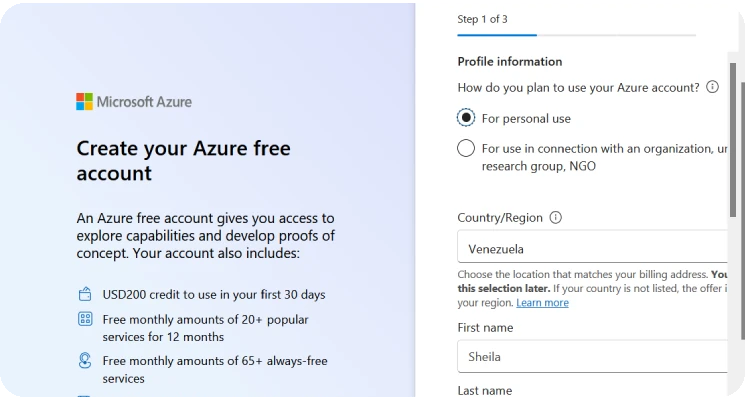
- Complete the registration steps. Microsoft requires a credit or debit card for identity verification during sign-up, but you will not be charged unless you explicitly remove the spending limit or upgrade.
- Go to the Azure Portal and select Speech Services under the Services category.
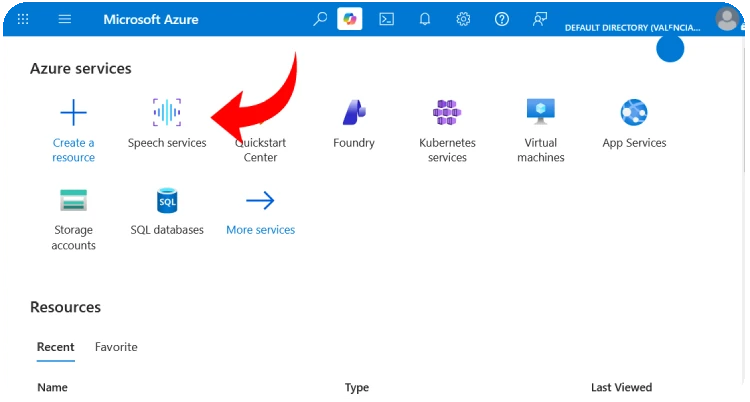
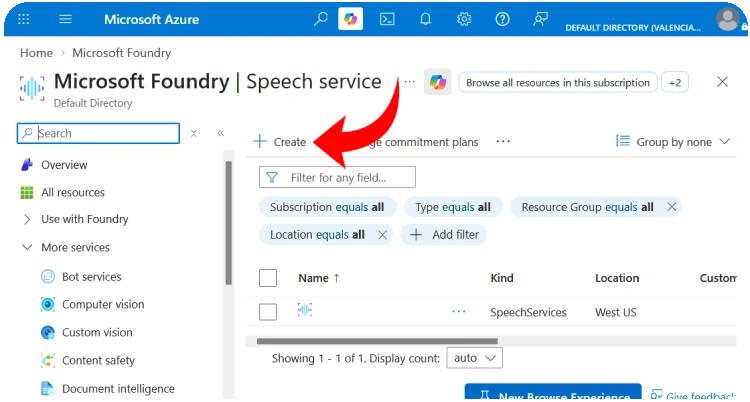
- Click on the Speech Services dashboard.
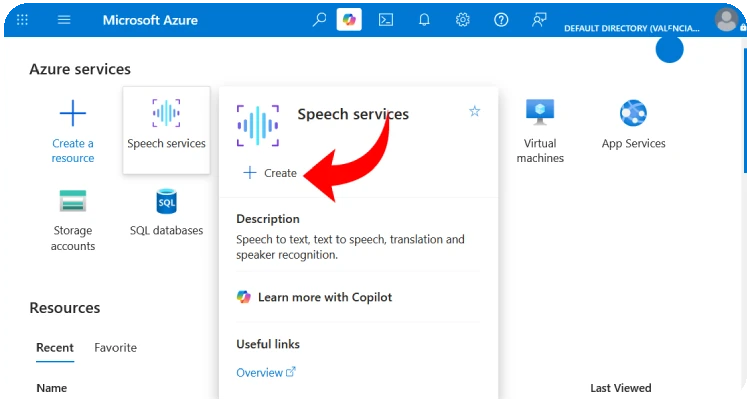
- Create Speech service.
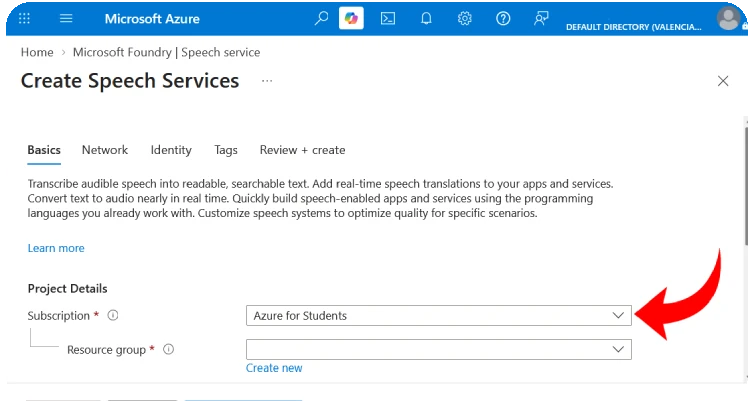
- Subscription: Select your active subscription (e.g., Azure subscription 1, Azure for Students or Free Trial).
- Resource Group: Click Create new and name it something clean, such as
demo.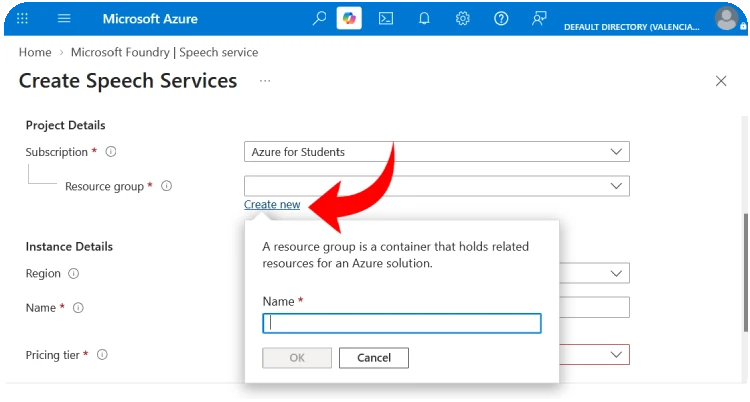
- Region: Choose a region close to your location (for example,
eastus,westusowesteurope). Keep note of this region name.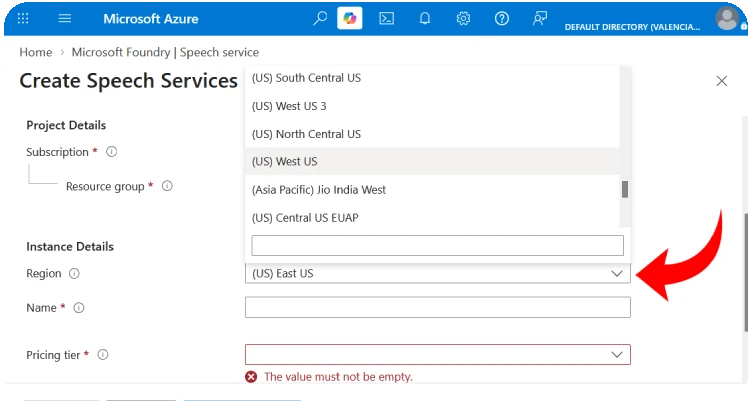
- Name: Give your service a unique identifier, like
tts-engine.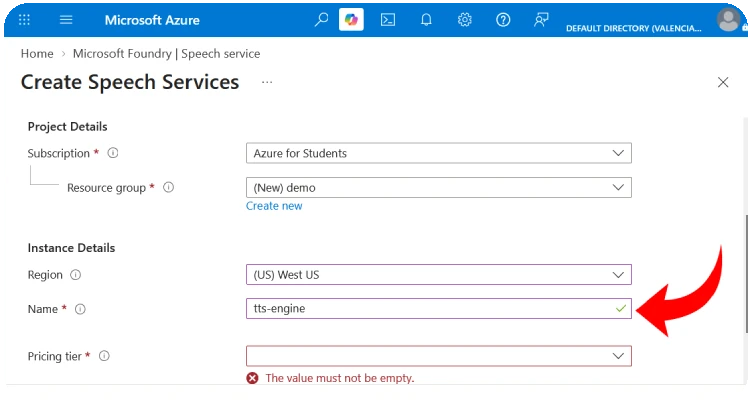
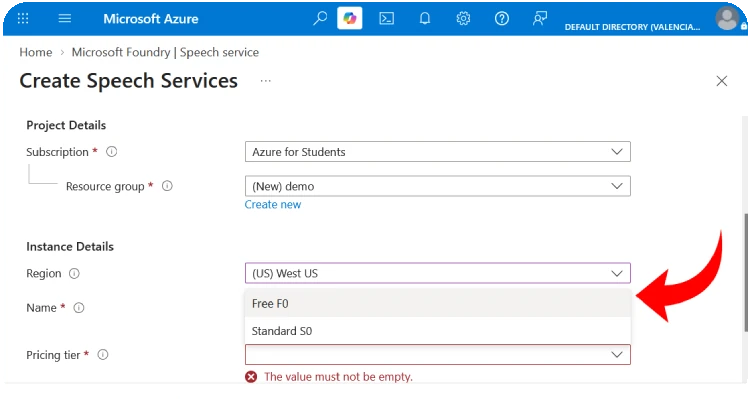
- Pricing Tier: Select Free F0 (500K characters per month). Note: Azure allows one F0 Speech resource per subscription.
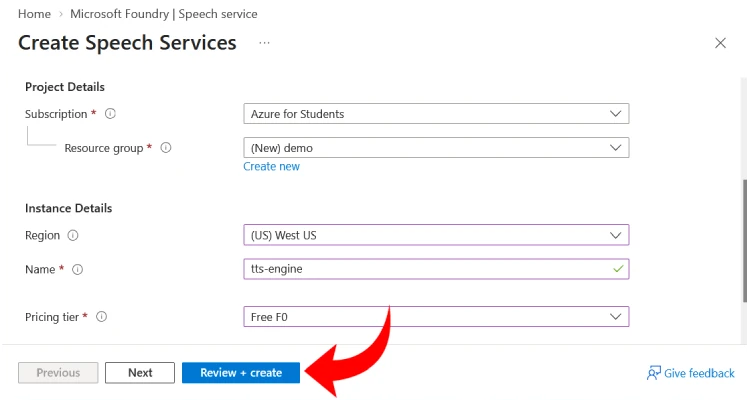
- Click Review + create at the bottom.
- After validation passes, click Create. Deployment typically takes under 60 seconds.
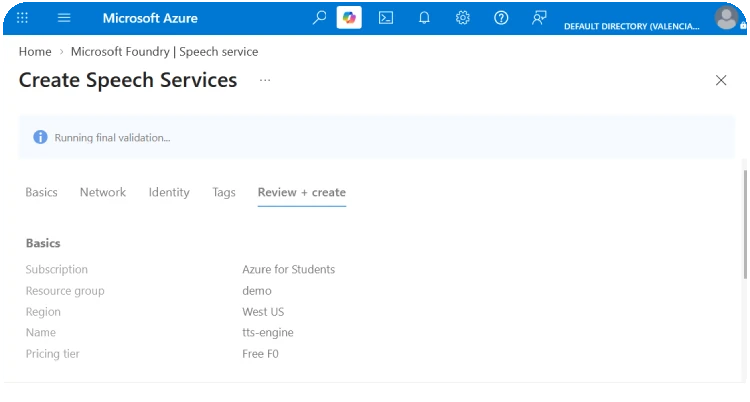
- When deployment completes, click Go to resource.
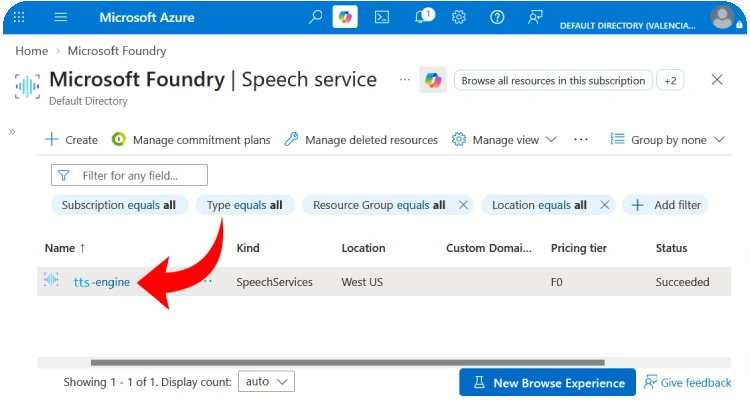
- In the left-hand navigation menu under the Resource Management section, click Keys and Endpoint.
You will see two keys and your region:
- KEY 1: Click the copy icon next to the key.
- Location/Region: Note the short identifier (e.g., eastus, westus2, westeurope).
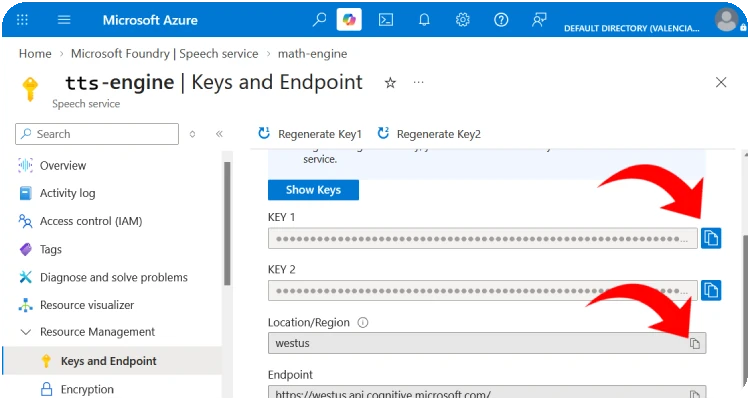
Security Note: Never share your API key publicly or commit it to public repositories.
Configure TTS Engine
Now that you have your credentials:
- Get TTS Engine from the Microsoft Store.
- Open TTS Engine on your desktop.
- In the top navigation bar, click ⚙️ API.
- Paste your key into the Azure API Key field.
- Enter your region code into the Azure Region field (e.g.,
eastus). - Click Aceptar / Save.
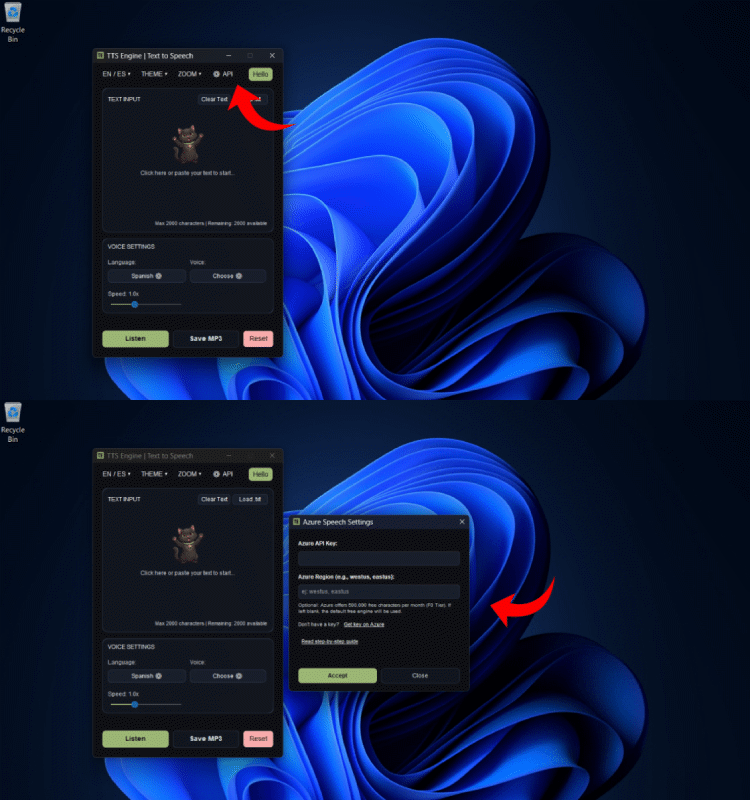
Once configured:
-
The Line pause slider activates, allowing millisecond precision between sentences.
-
Compatible neural voices (marked with a star ⭐ in the catalogue) will display their available Emotion / Style dropdown (such as cheerful, sad, whispering, or terrified).
-
All requests run through your personal quota. If you leave the fields empty at any time, TTS Engine immediately reverts to its default built-in free engine.