Generating natural-sounding voiceovers usually means paying for subscriptions or settling for robotic voices. Most cloud-based text-to-speech platforms charge recurring monthly fees or severely limit character counts.
TTS Engine is a Windows desktop tool that converts written text into high-fidelity neural speech completely free of charge. It features a visual voice catalog covering various international accents, lets you preview audio instantly, and exports clean MP3 files directly to your computer.
Follow this step-by-step guide to create and export your first neural voiceover.
-
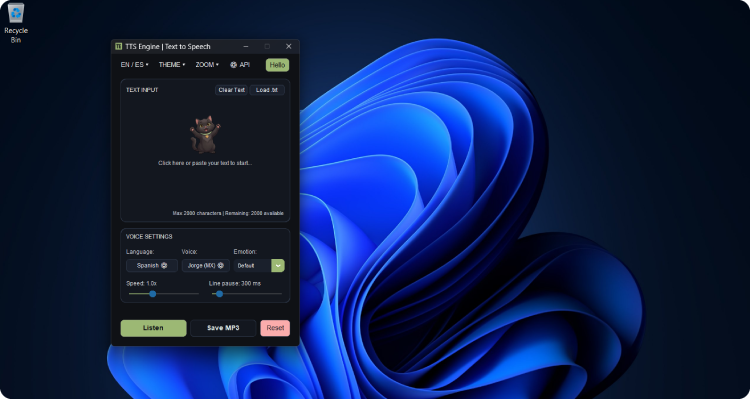
Launch TTS Engine on your computer.
-
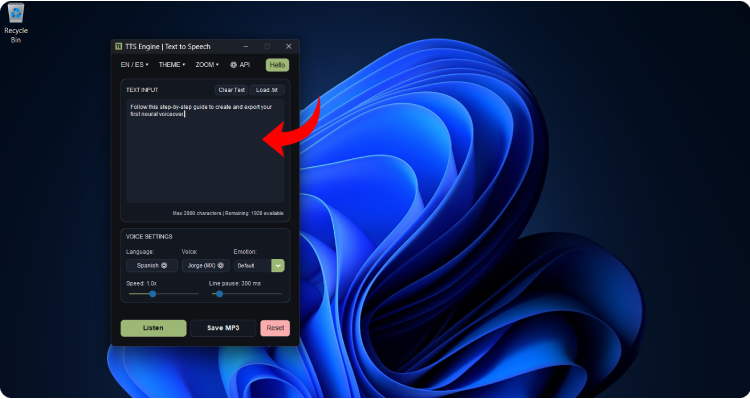
Click directly in the central box titled TEXT INPUT, then type or paste your script into the editor.
-
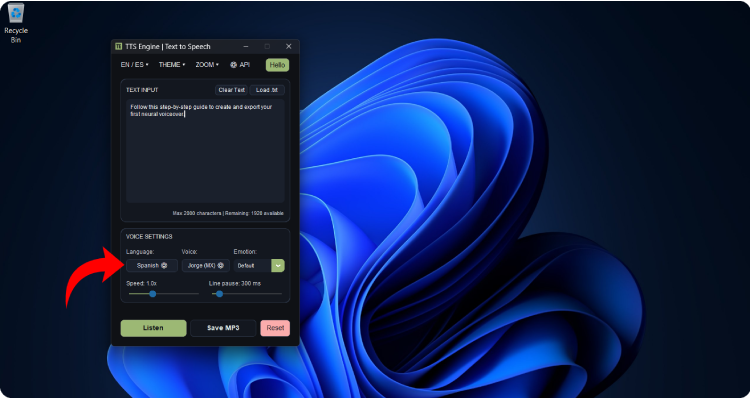
In the VOICE SETTINGS card, click the Language: button to open the Language Catalog window.
-
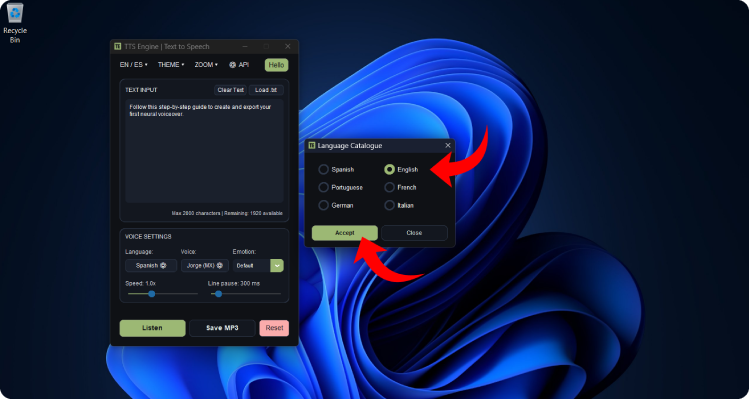
Select your preferred language (Spanish, English, Portuguese, French, German, or Italian) and click OK.
-
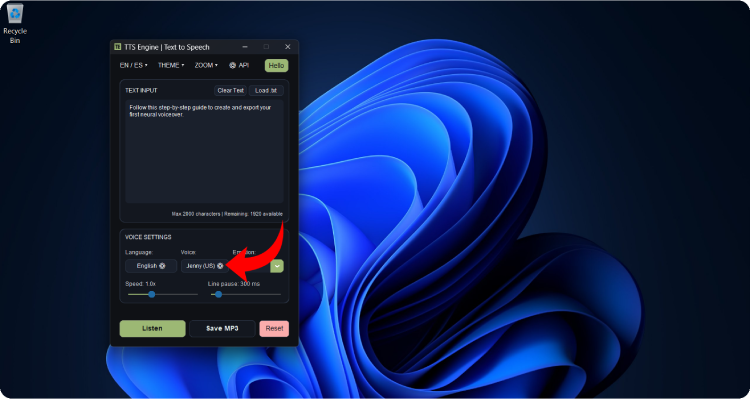
In the VOICE SETTINGS card, click the Voice: button to open the Voice Catalog side panel.
-
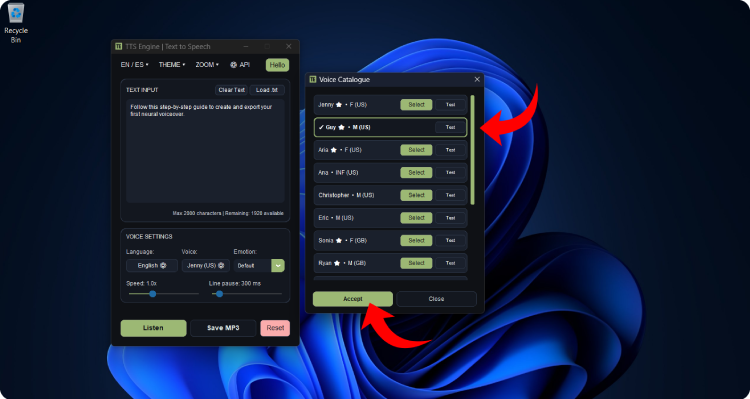
Click Select on the option you prefer, then click OK at the bottom of the window.
-
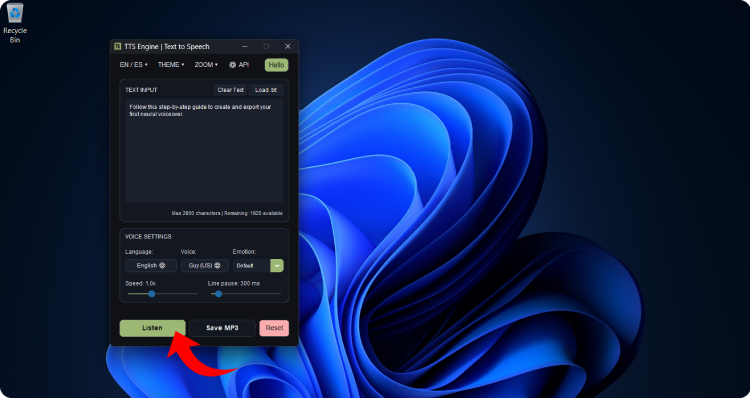
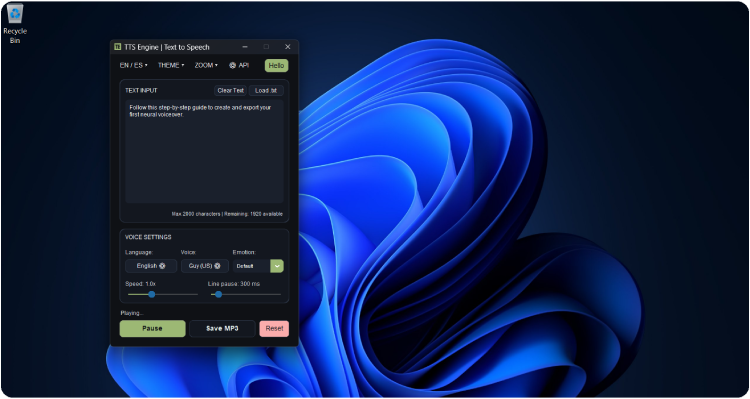
Before generating the final file, preview how your voiceover sounds by clicking the green Listen button.
-
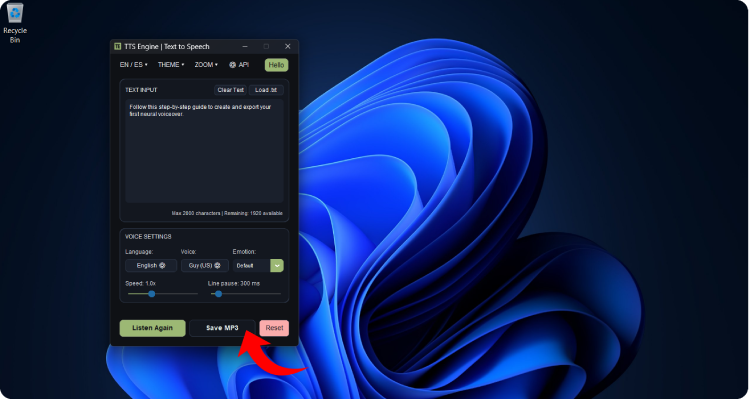
Once you are satisfied with the result, click the Save MP3 button on the bottom action bar.
-
Windows File Explorer will open. Choose the destination folder (it defaults to
tts-engine.mp3) and click Save.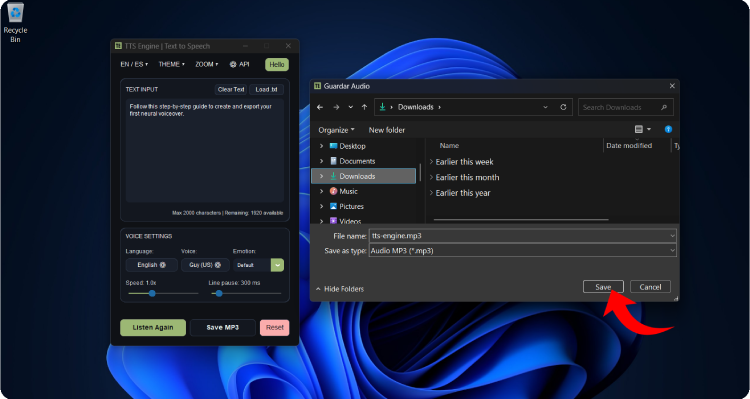
-
Once the export is complete, a confirmation dialog will appear displaying the file name and generated audio size (for example,
340.5 KB). Click the Open Folder button to instantly go to your file’s location in Windows.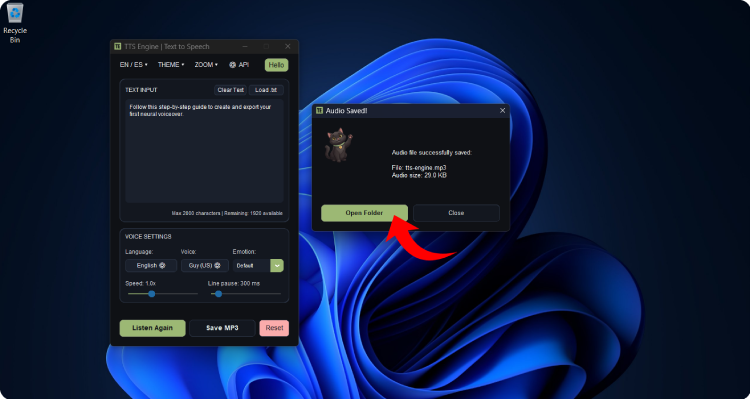
Your MP3 file is now ready to be used in video editors, podcasts, presentations, or study playlists.